







Specializing in WordPress at Scale, Web Applications, & Open Source since 2007
Digital Support Services
At Crowd Favorite, our seasoned professionals are poised to revamp and align with your enterprise's evolving needs, ensuring uninterrupted digital operations and support. Partnering with us frees up your internal resources, allowing them to concentrate on core business functions. We help minimize downtime's costly effects, protecting your business's reputation, and foster operational efficiency to maintain a competitive edge. By focusing on proactive solutions, we reduce future issues, lower long-term costs, and build a resilient digital infrastructure, maximizing the return on your investment.
- Digital Managed Services
- WordPress Support Services
- Dedicated Maintenance & Emergency Response
- Proactive System Monitoring & Upgrades
- Customized Support Plans Tailored to Your Needs
- Incident Response & Root Cause Analysis
Web Application Development
Crowd Favorite leverages the versatility of open-source frameworks to create dynamic, scalable solutions that grow with your business. Our services, ranging from complex CMS/DXP systems to custom applications, are designed to adapt to your current needs and expand as required. This flexibility allows for easy experimentation with emerging technologies and marketing strategies, ensuring your digital ecosystem remains cutting-edge and effective.
- Digital Strategy & Online Application Ideation
- Digital Roadmapping for Open Source & Mixed Systems
- Strategic Workflow & UX Design
- Online Application Development & Custom API’s
- Application Support & New Feature Development
Open Source CMS System Integration
Crowd Favorite stands out as a reliable guide in the intricate landscape of digital marketing. Our expertise lies in revitalizing WordPress sites to enhance customer engagement significantly. We implement cutting-edge features like personalization, progressive profiling, and AI-driven marketing tools, tailoring workflows to fit your needs. This approach transforms your existing infrastructure, establishing a comprehensive 360 Customer model, ensuring a more personalized and effective customer interaction.
- Online Conversion & Performance Optimization
- AI, Personalization & Conditional Content Marketing Tools
- Custom Open Source API Integrations
- eCommerce Development & Integration
- Application Support & New Feature Development
- Strategic Workflow & Customized Interfaces
- User Experience & Design Enhancements
Composable CMS Architecture & Implementation
Crowd Favorite excels in developing high-performing, Composable Content Management Platforms using WordPress and other Open Source alternatives. This expertise translates into a higher ROI compared to proprietary SaaS platforms. Our approach not only fosters agility in your digital solutions but also opens avenues for experimenting with innovative marketing strategies, offering you a competitive edge in a dynamic market.
- Enterprise WordPress Customization & Integrations at Scale
- AI, Personalization & Conditional Content
- Customized Workflow UX for Large Teams
- eCommerce Development & Integration
- Custom API Integrations
- Performance Scaling
- Data Migration
Enterprise WordPress
Crowd Favorite specializes in high-end Enterprise WordPress solutions, blending WordPress's core features with advanced enterprise capabilities for a smooth and reliable user experience. Trusted by leading brands, our WordPress services enhance your website's performance with flexible content management, an intuitive interface, and a vast selection of plugins and extensions.
- WordPress Strategy, Architecture & Roadmapping
- Large Scale WordPress Deployment
- Custom WordPress Development
- Scaling Existing WordPress & Custom Editorial Workflows
- Enterprise WordPress Customization & Integrations
- WordPress Security & Performance Audits
- Site Migration to WordPress
Digital Strategy
Crowd Favorite excels in crafting effective digital marketing strategies and streamlining complex business processes. Prioritizing return on investment (ROI), we don't start with software selection; instead, we focus on integrating tailored, user-friendly workflows with top-tier technologies. This approach leads to solutions that enhance engagement, improve conversion rates, and strengthen customer loyalty, ensuring measurable success for your business.
- Online Application Ideation
- Information Architecture Of WordPress & Mixed Systems
- Digital Roadmapping & Program Management
- Strategic Workflow & UX Design
- Data Privacy & Security
- Conversion Optimization
- Performance Optimization & System Audits
Specializing in WordPress at Scale, Web Applications, & Open Source since 2007
Crowd Favorite a Trusted Partner On Your Digital Business Journey

Disney ABC Press: A Decade of Open Source ROI Success
Ten years and counting: a dynamic, Open Source press solution for Disney's TV branding continues to deliver rising ROI amidst multiple brand reconfigurations and business changes.

Open Source DXP for Academic Partnerships
Academic Partnerships chose WordPress over Adobe for a DXP with custom workflows, a no-code editorial process, and deep personalization, which resulted in a 35% Y-o-Y cost savings.

Bespoke Judging Application for Emmy Awards
Crowd Favorite partnered with the National Academy of Television Arts and Sciences to build a bespoke judging application to improve the user experience for the Emmy nominees.

Disney | ABC
A 10-year ongoing digital partnership of building and supporting some of the most highly trafficked sites in entertainment.

Campbell's
Launched a new marketing campaign website 81% faster than the previous site and with 33% less investment.

Lexus
Developed a quality control site that helped Lexus streamline and accelerate customer safety and satisfaction.

National Academy of Television Arts & Sciences
Built a bespoke Open Source judging application for the Emmy Awards to streamline the complexity of running a National Awards show.

NVIDIA
Provide ongoing Digital Support Services to bridge the gap between the marketing and IT departments and ultimately boost efficiency.

Providence
Integrated new solutions to legacy code in order to leverage dynamic content management across all clinic and hospital locations.

Victaulic
Custom catalog for wholesale distribution using an Open Source eCommerce check-out system that generated 100s of leads weekly.

Janus Henderson
Built a Securities Exchange Commission (SEC) compliant consumer and broker customized portal using Open Source technology.
Featured Articles
Alternatives to Sitecore Series
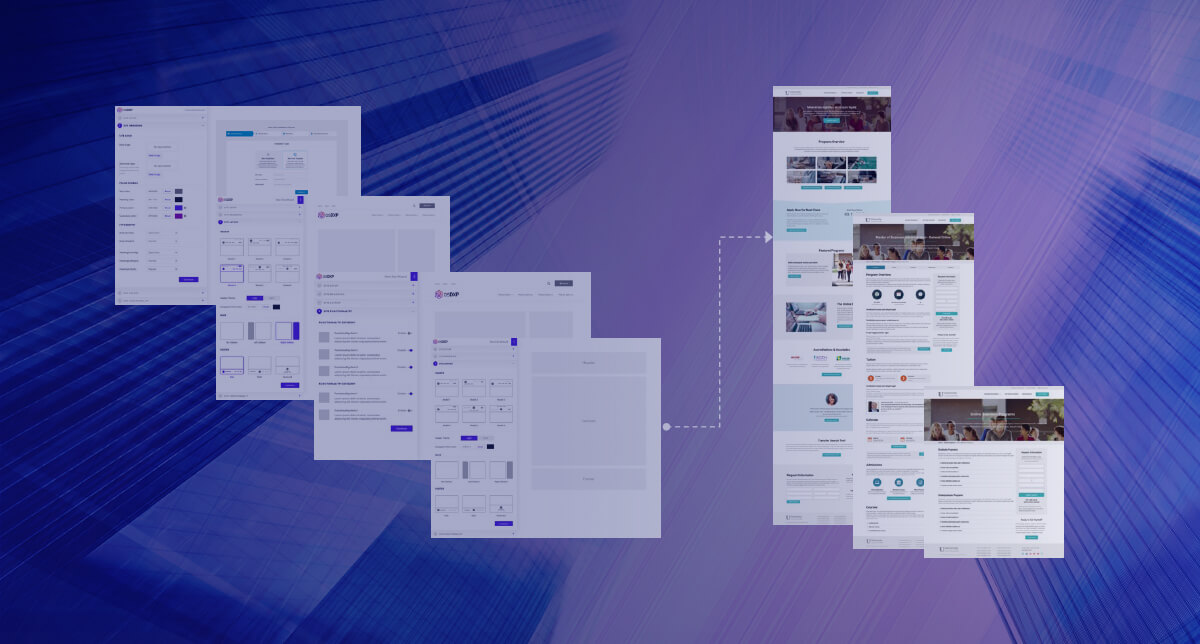
In this ongoing article series, you'll learn how enterprise marketers are leveraging a suite of Open Source tools to perform the same tasks as Sitecore at a fraction of the cost. Part One will explore Sitecore's Content Management and its promise to create, manage, and deliver content across unlimited channels and markets
Crowd Favorite On-Stage
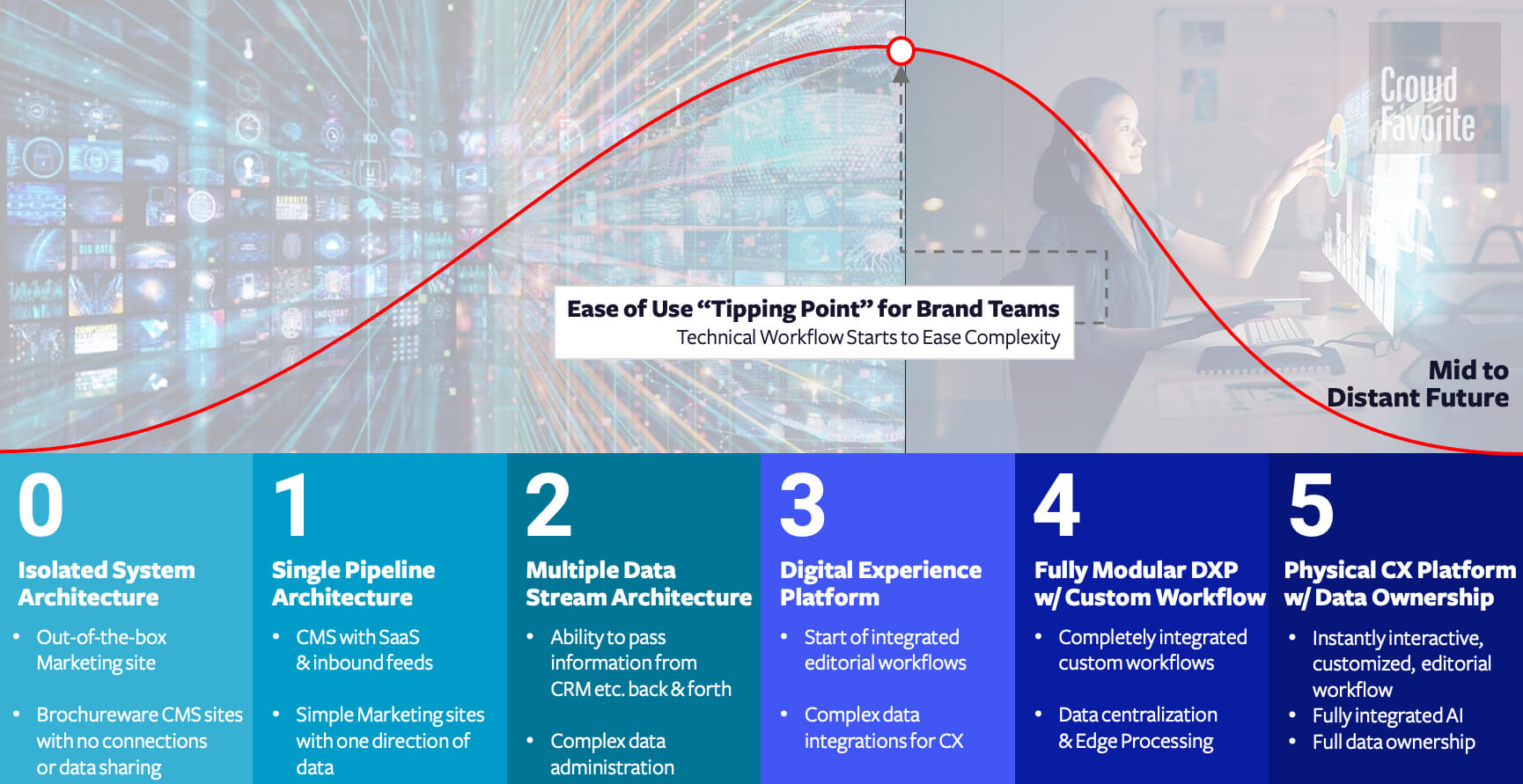
While DXPs promised a cure-all solution, many organizations are discovering that they still struggle to make quick adjustments. Some businesses reveal that even minor website updates can take several weeks to implement. The result? Companies become entrenched in their technological investments, regardless of their inability to execute simple tasks quickly.
Unlocking Digital Success: Embracing Composable DXPs & Open Source
Uncover the key benefits of integrating best-of-breed solutions and how leading organizations are using these strategies to stay ahead in the digital race

Mitsubishi Power




United States Olympic & Paralympic Museum

Disney
LKQ Corporation
Campbell's
Crowd Favorite’s Premium WordPress Products offer personalized client experiences, customizable content, performance optimization and improved site speed, and more. We are bringing the enterprise experience to the Open Source Community, learn more and shop here.
Personalization
Dynamically personalize content based on audience segments, connect directly with your Analytics platform and increase user engagement.

Personalization
Gather more about site visitors with each visit to your site, while creating a more personalized experience for them.
Add your voice